AI Keyboard — User Guide
An Android keyboard (IME) that lets you speak instead of type. Voice is transcribed by Groq Whisper (recommended), Gemini Live, or Android’s built-in recognizer, and you can optionally run text through AI “prompts” to fix grammar or rewrite tone using your own Groq or Gemini API key. Typing assistance — suggestions, auto-fix, and next-word prediction — runs entirely offline, and hold gestures put digits, punctuation, and word-by-word delete on the letter keys.
Features
What AI Keyboard can do:
- Voice-to-text dictation inside any app — record-then-transcribe with Groq Whisper (recommended) hears your complete sentence for far better accuracy; Gemini Live streaming and Android’s built-in recognizer are also available
- AI correction/rewriting using Groq or Gemini, with prompt chips for tone/style (Fix Grammar, Professional, Casual, custom)
- Field Correction — hold a prompt chip to correct everything in the text box, preview the result, then replace it in place with a five-second Undo
- Typing assistance, fully offline — a suggestion strip as you type, auto-fix on space, next-word prediction, and a learned-words manager; no network, no API key
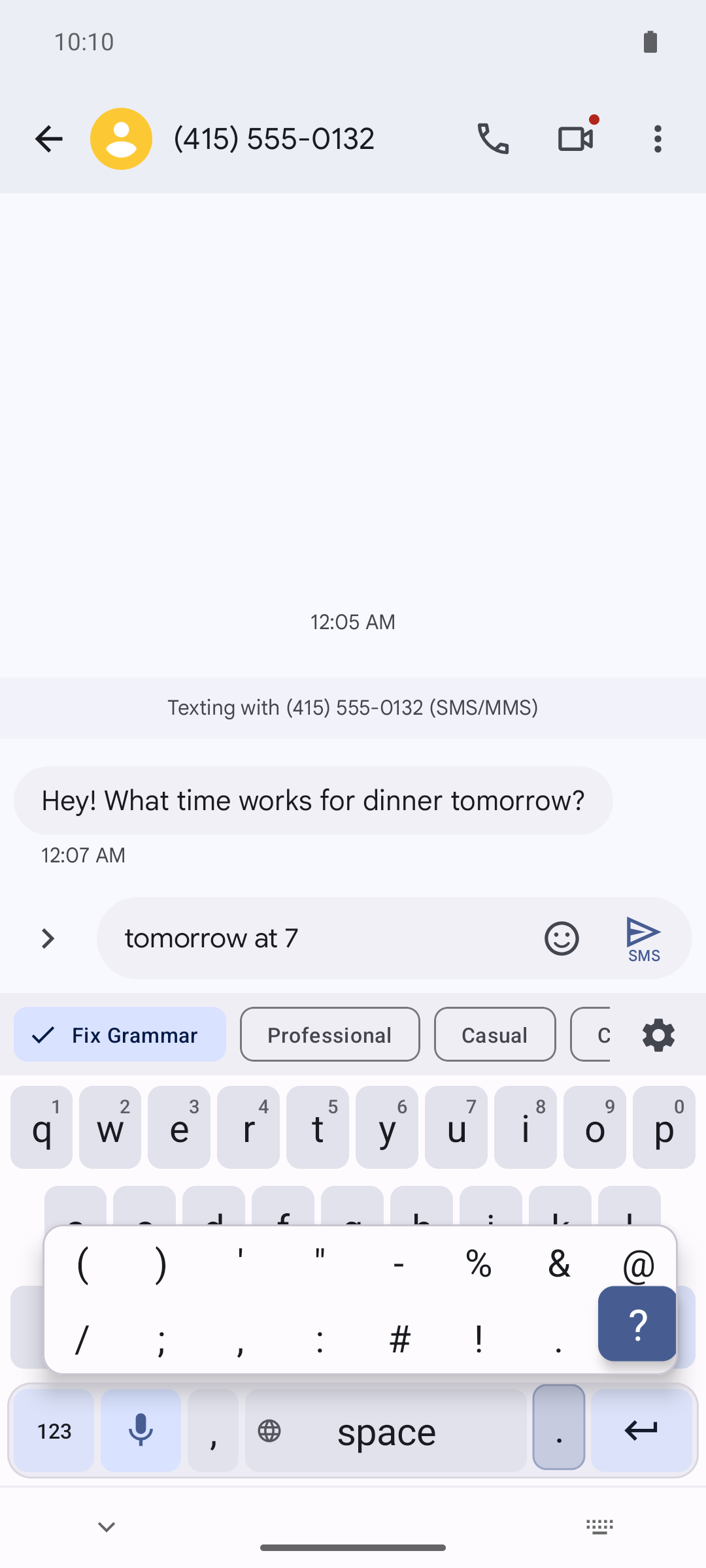
- Hold gestures — hold a top-row key for its digit (q for 1 through p for 0), hold . or , for a sixteen-mark Punctuation Palette, and hold backspace to clear whole words after the first second
- AI Transform — select text in a supported app or share text to AI Keyboard, apply a prompt, then replace, copy, or share the result
- Correction preview with a model badge naming the AI that answered, and actions: Insert / Copy / Share / Dismiss
- Settings for auto-correct, auto-insert, and auto-copy
- Token usage statistics stored locally on-device
What’s new
Recent releases at a glance:
v1.6 — Digits and punctuation without leaving the letters
- Hold any top-row key for its digit — q for 1 straight across to p for 0, with the digit shown on each keycap. No more trips to the 123 page.
- Hold . or , and the Punctuation Palette opens: sixteen marks in two rows. Slide to one and lift to type it. Release without moving and you simply get the key you were pressing — a slip costs nothing.
- A held backspace starts on characters and switches to whole words after about a second, with a buzz when it switches and a stop at every line break. A tap always deletes exactly one character.
- Every key now responds to a hold in 300 ms instead of half a second.
- Removed: the accented characters on a e i o u n c — digits and accents wanted the same keys, and the built-in dictionary never recognized accented words. If you type them regularly, keep a system keyboard alongside and switch with the globe key.
v1.5 — Field Correction
- Hold a prompt chip to correct everything in the text box, preview it, then tap Replace. Tap a different chip in the preview to compare styles on the same text.
- Built to be paranoid: it re-reads the box before replacing and asks if you typed in the meantime, refuses truncated results, and shows a five-second Undo bar after every replace.
- Off by default (Settings → Field Correction), and refused outright in password, email, address, phone, number, and date fields.
- Long dictations no longer come back silently cut off — truncated replies are caught and marked.
v1.4 — Typing Assistance, entirely offline
- A suggestion strip shows candidates for the word you’re typing; obvious misspellings fix themselves on space (“teh” → “the”), and one backspace undoes any fix and teaches the keyboard to leave that word alone.
- Next-word prediction offers what usually comes next — tap it and it lands with a space.
- Runs against a 37,000-word dictionary built into the app: no network, no API key, works in airplane mode. Learned words stay in a private on-device database you can review and delete in Settings.
- Switches itself off in password, email, URL, phone, and number fields.
v1.30 — Groq Whisper voice and model transparency
- Groq Whisper speech-to-text: your full recording is transcribed with complete sentence context for dramatically better accuracy, with a generous free tier.
- A model badge on corrected text and live transcription names the model that actually answered, so silent fallbacks are visible.
- Gemini correction uses Gemini 3.5 Flash-Lite by default, with an advanced model override and a “Fetch available models” picker in Settings.
- AI Transform from text selection or share, Android 16 support, and Groq-first onboarding. The legacy localhost/Moonshot integration has been removed.
Setup (first time)
AI Keyboard is a system keyboard. You only need to enable and select it once.
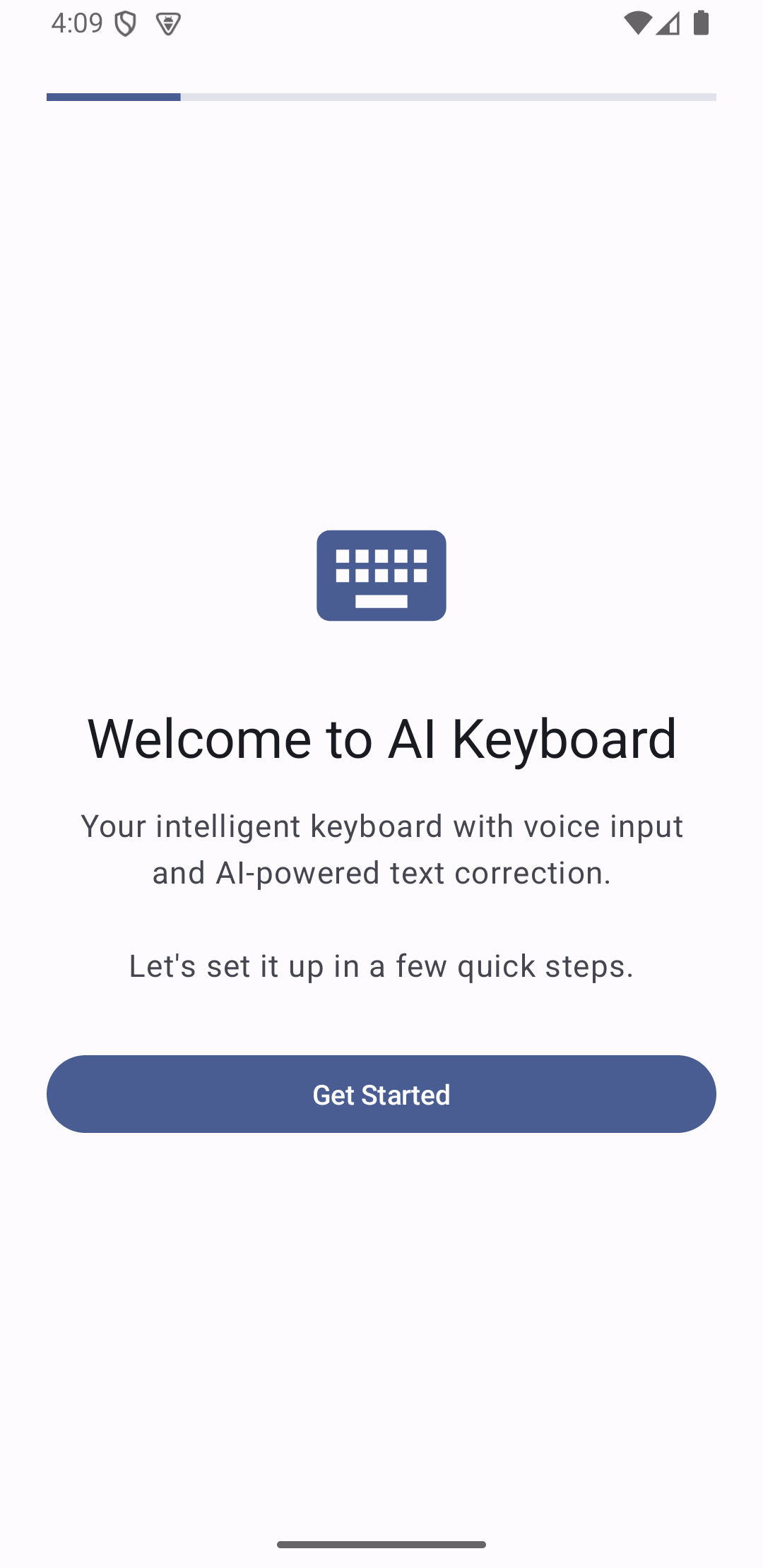
1) Open AI Keyboard
Open the app from your launcher. You’ll see the setup wizard.
2) Enable the keyboard
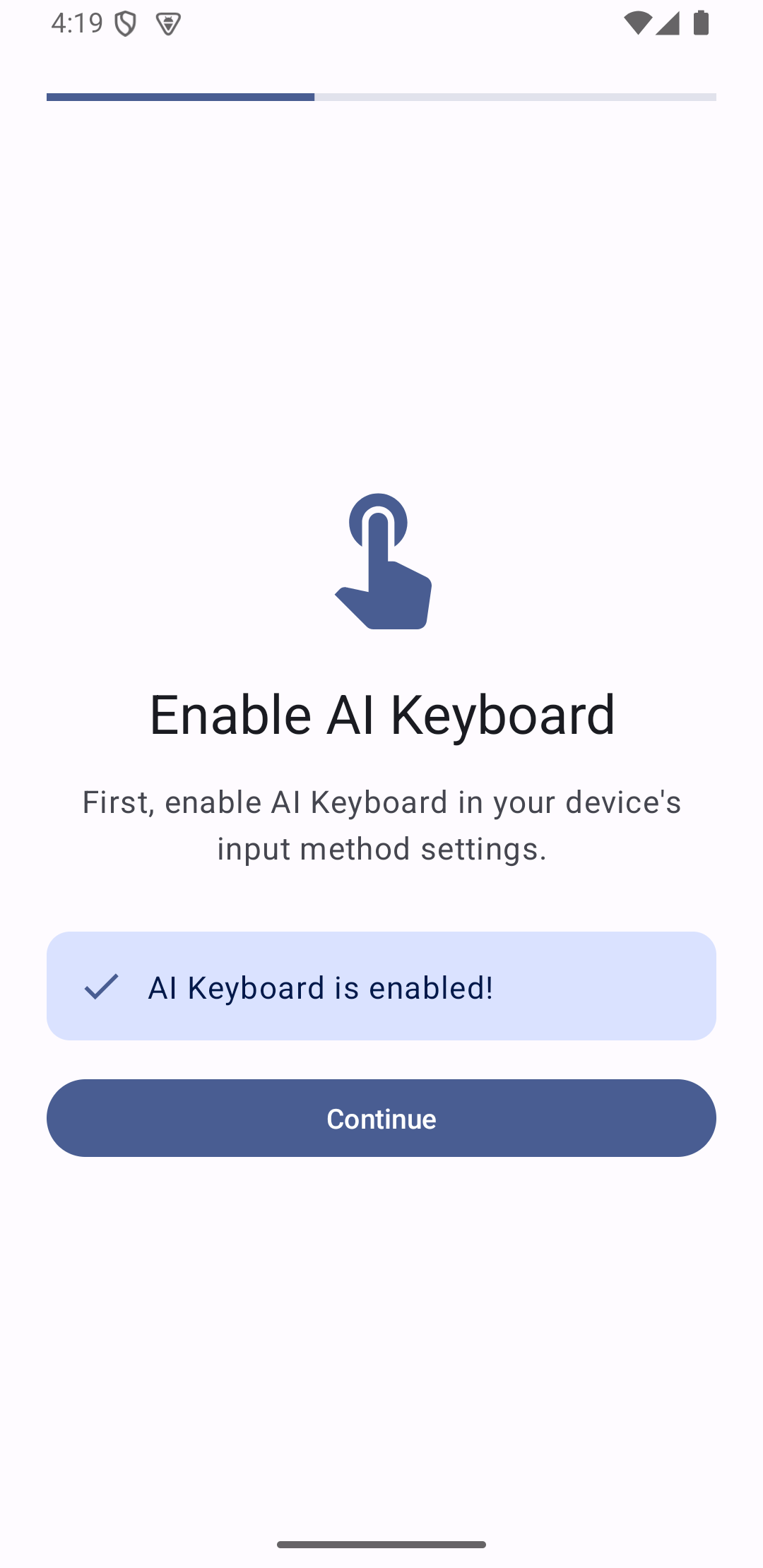
Follow the wizard and enable AI Keyboard in your device’s input method settings.
3) Select AI Keyboard as your current keyboard
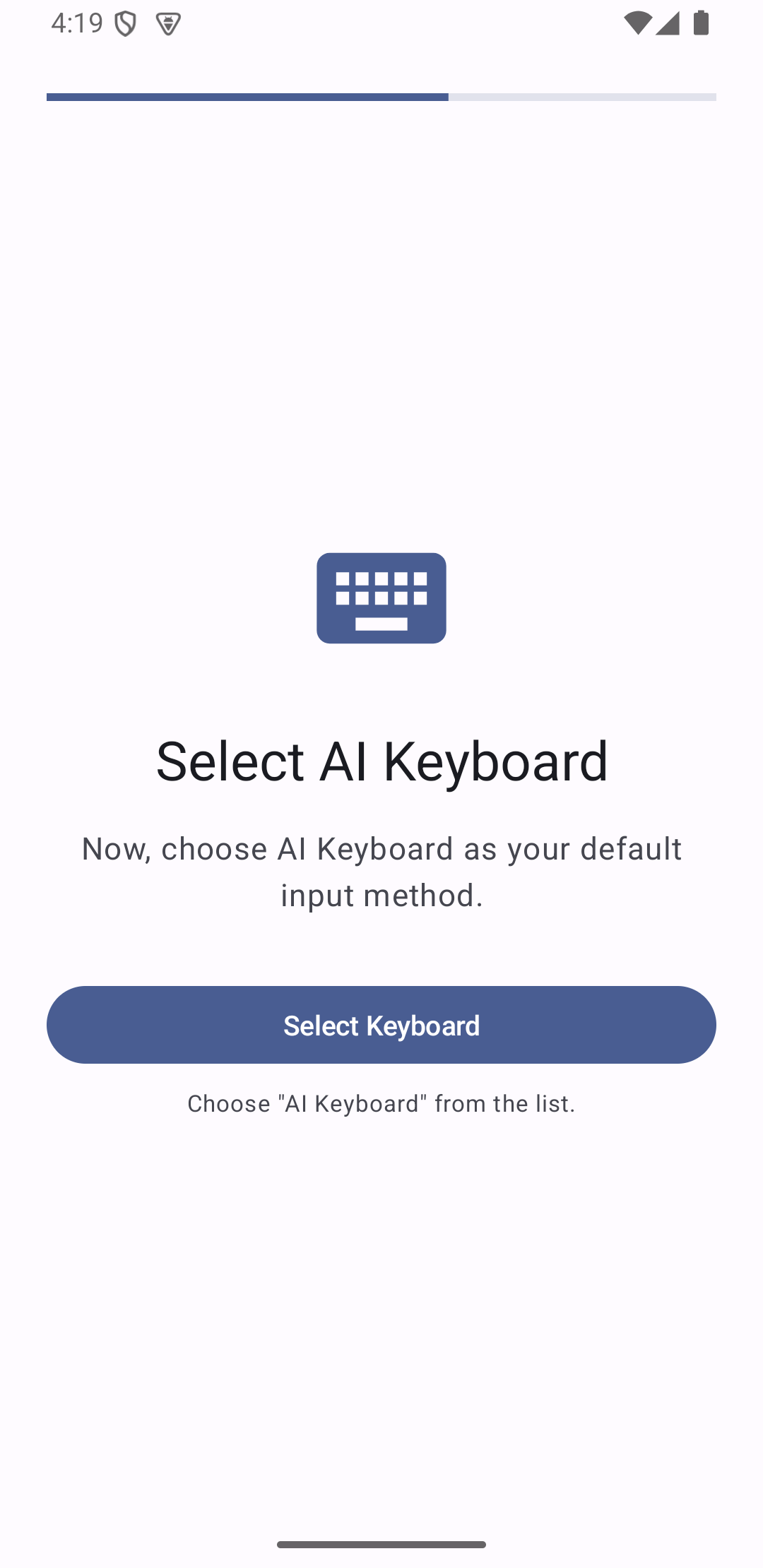
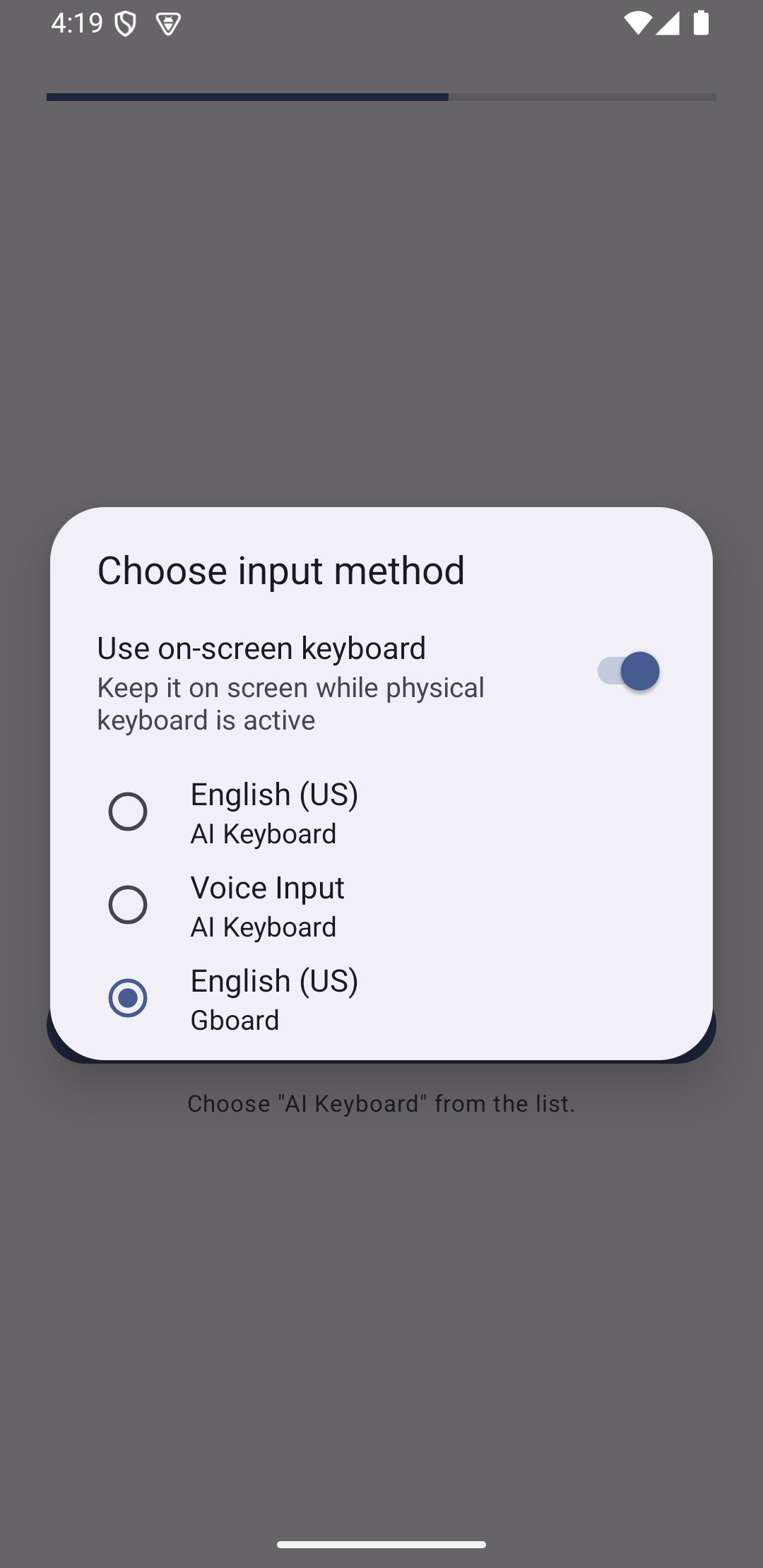
Tap Select Keyboard, then choose AI Keyboard from the system picker.
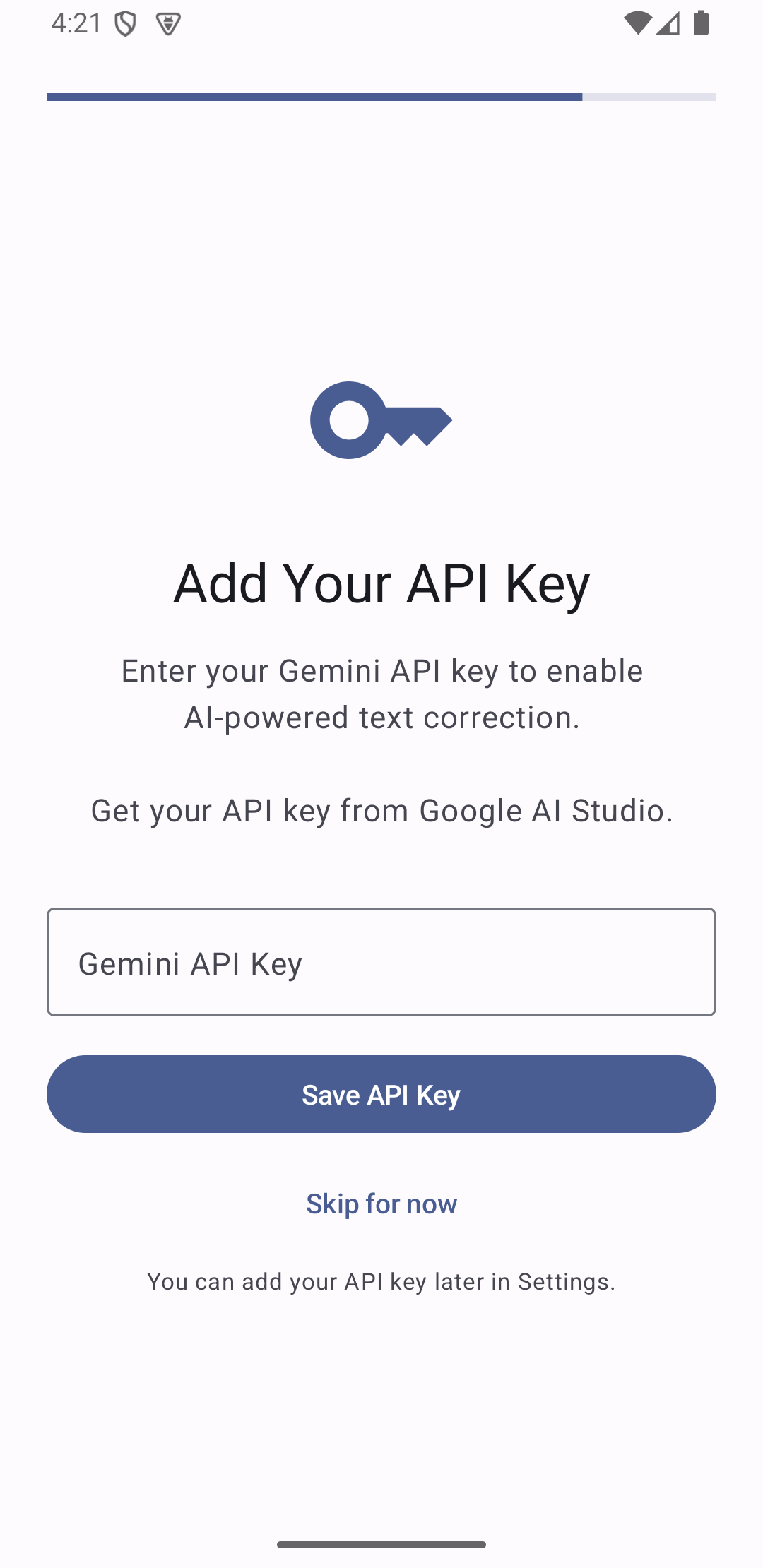
4) (Optional) Add a Groq or Gemini API key
Add an API key to enable Groq Whisper voice typing and AI correction/rewriting. Setup recommends Groq — its free tier covers everyday use. You can skip this and add a key later in Settings. Need help getting one? See the Groq guide or the Gemini guide.
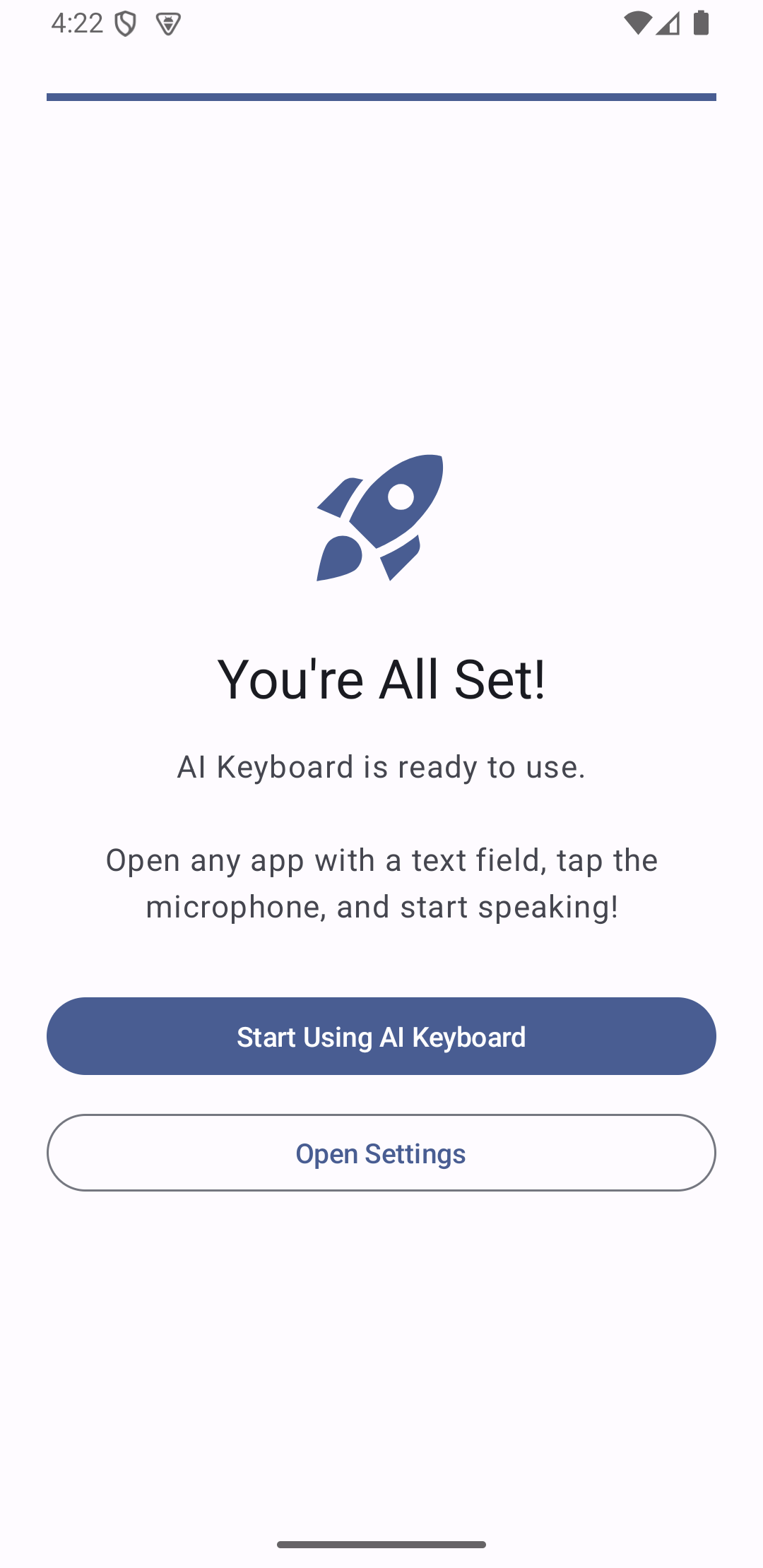
5) Done
Open any app with a text field and start using the microphone.
How to use
Use AI Keyboard anywhere you can type.
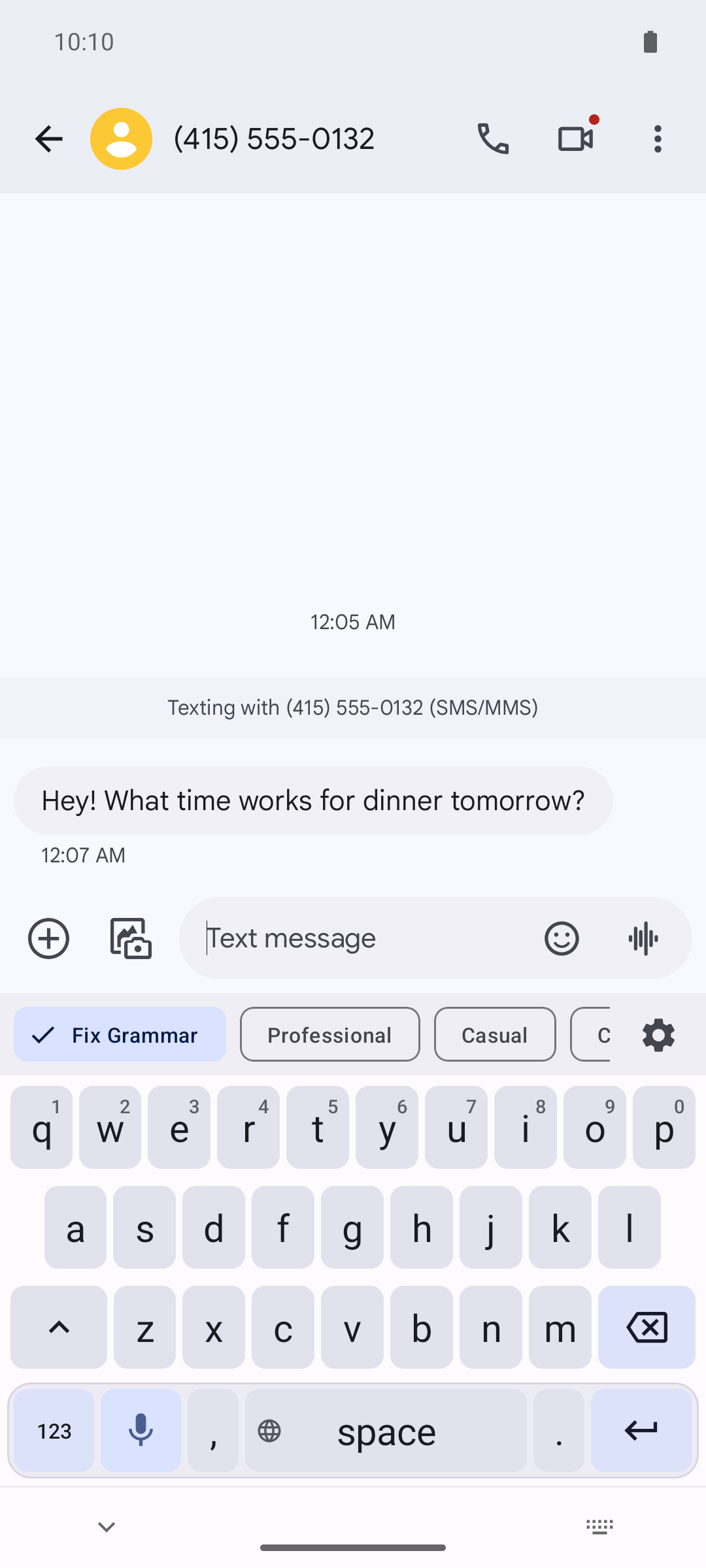
Choose a prompt (style)
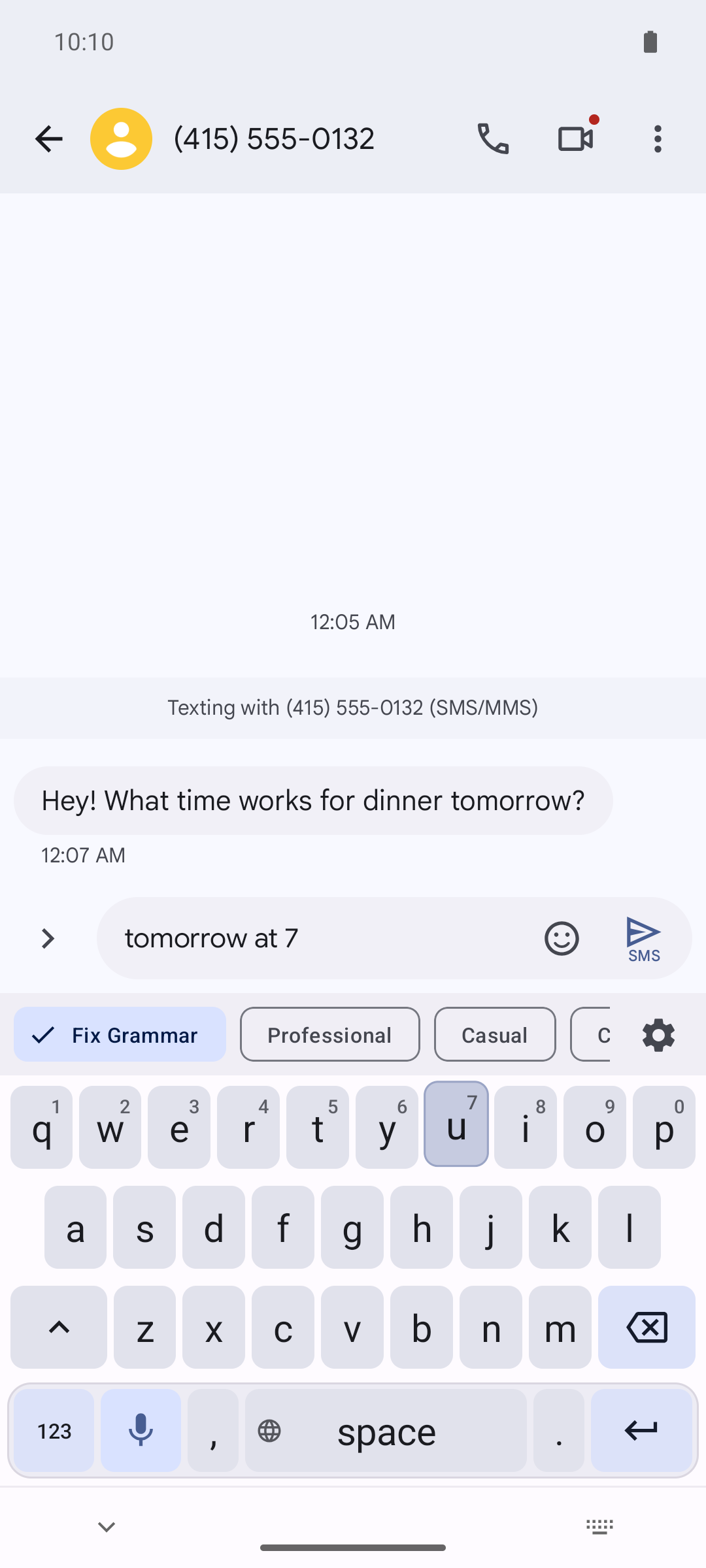
Prompt chips control how AI rewrites your text (for example: Fix Grammar vs. Professional tone).
Voice dictation
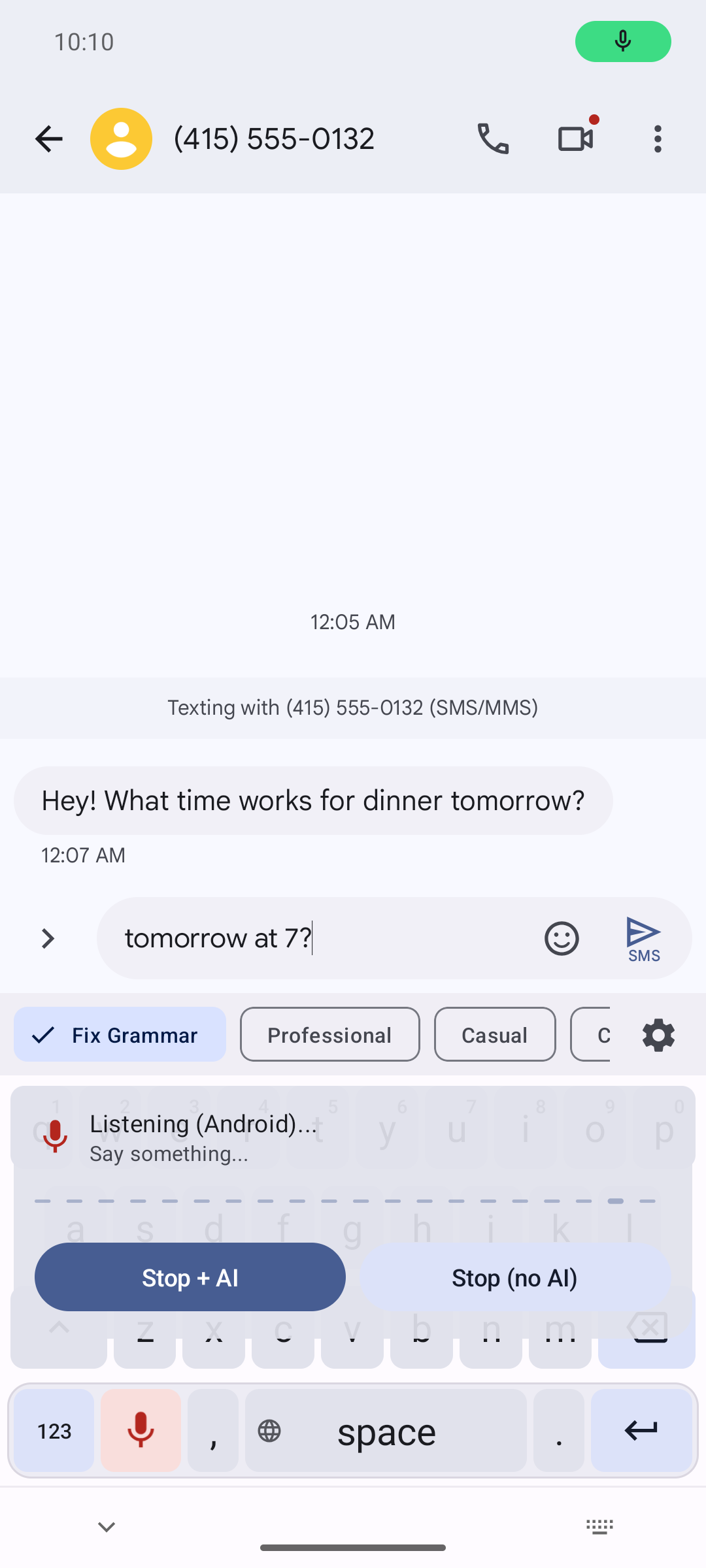
Tap the microphone button and speak. When you’re done, stop the recording.
If Auto-correct after voice is enabled, you may see two stop options:
Stop + AI and Stop (no AI).
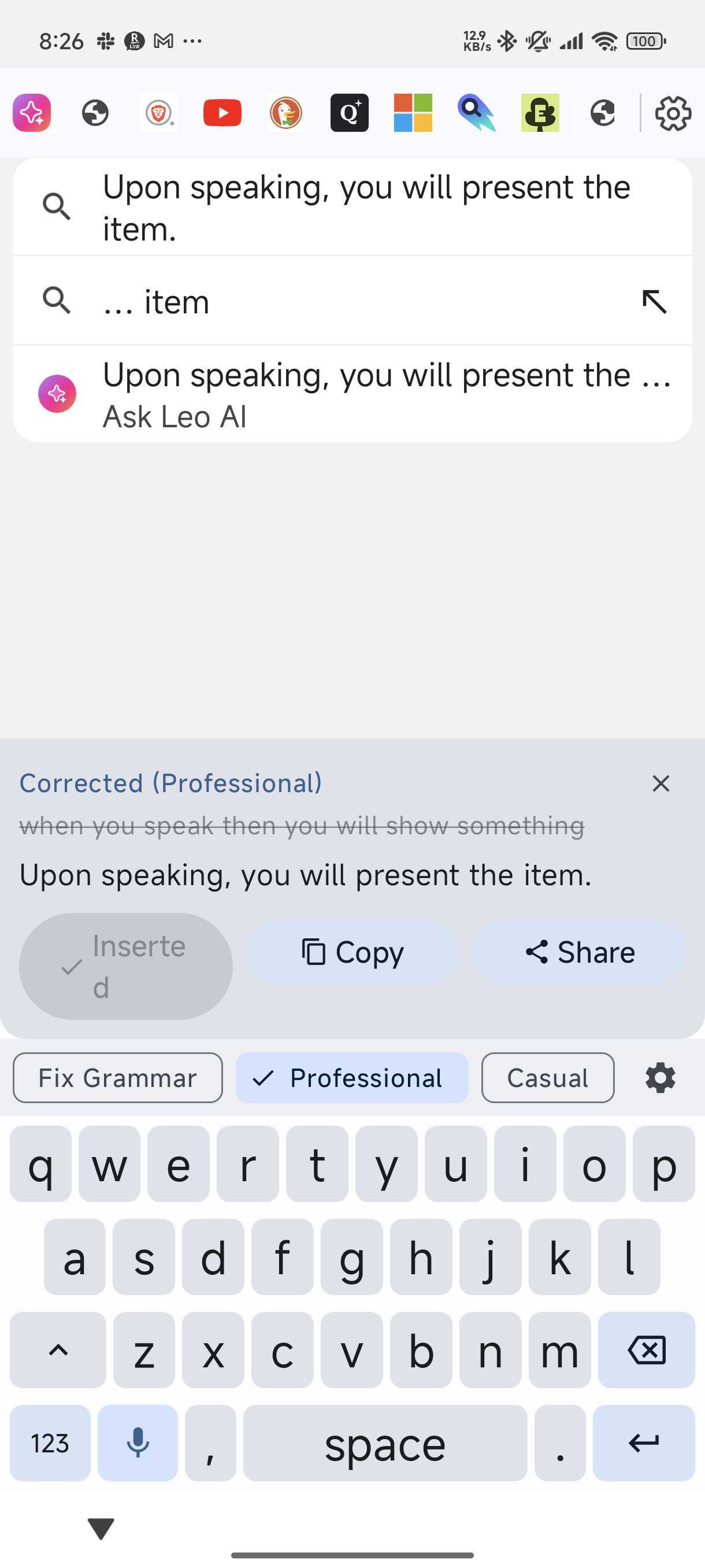
AI correction preview (Insert / Copy / Share)
When AI correction is enabled and your API key is configured, the corrected text appears in a preview panel. Insert it into the current field, or copy/share it.
Fix the whole message with one hold (Field Correction)
Hold — don’t tap — a prompt chip and the keyboard corrects everything in the text box, shows a preview, and replaces it when you tap Replace. Tap a different chip in the preview to compare styles on the same text, and tap Undo within five seconds to get your original back. Off by default: turn it on under Settings → Field Correction. A plain tap on a chip still just picks that prompt.
Typing assistance (offline)
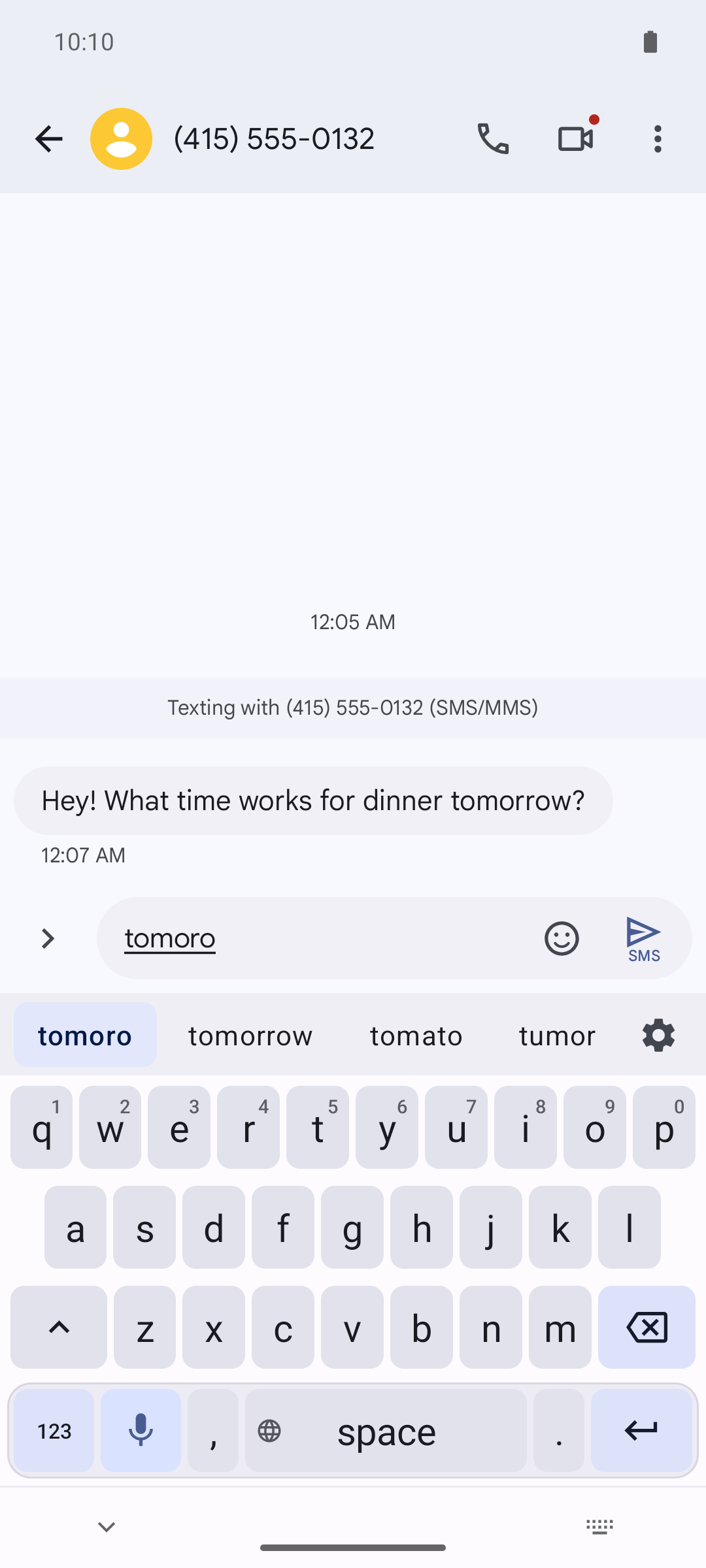
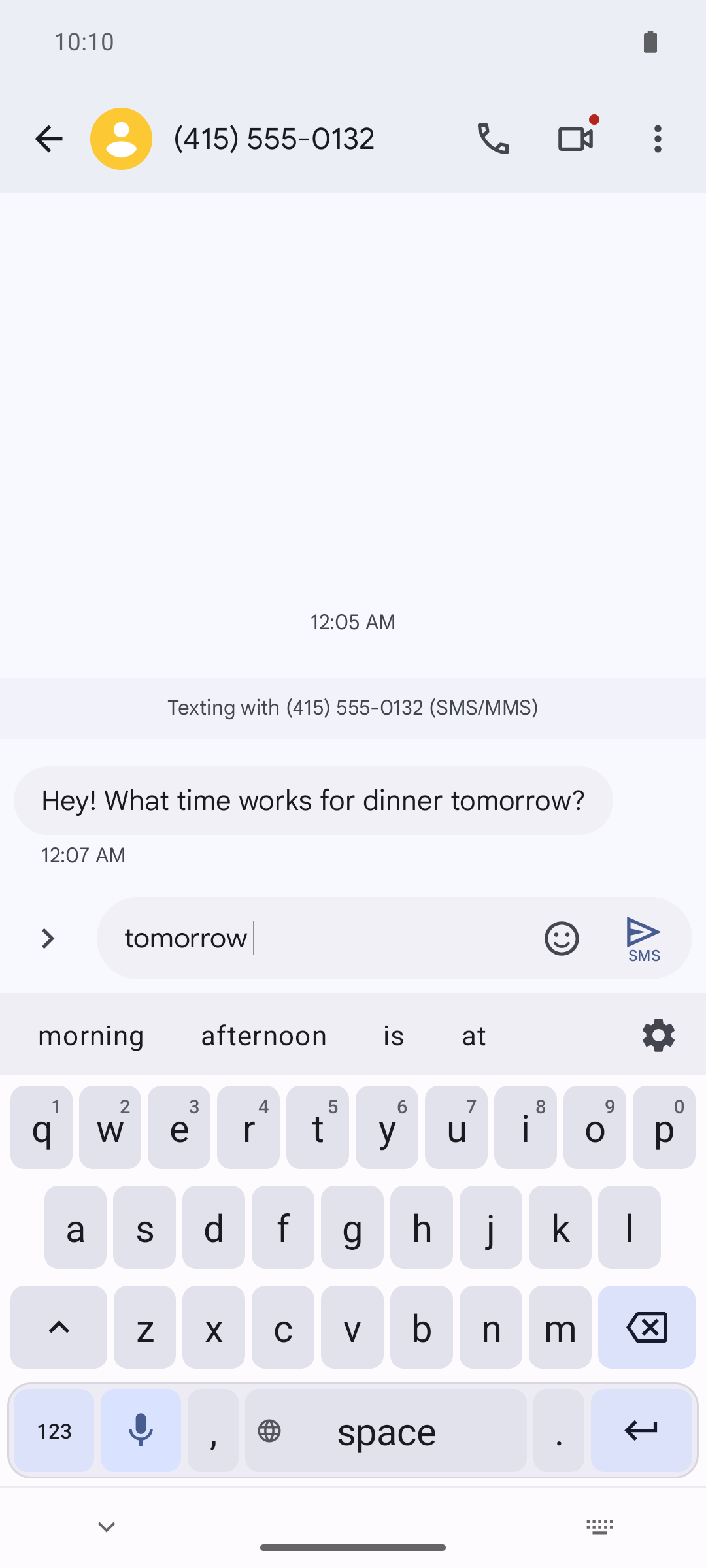
As you type, the suggestion strip shows candidates for the current word — tap one to swap it in. Obvious misspellings fix themselves when you type a space, and a single backspace restores your word exactly and stops the keyboard correcting it. After a word, the strip offers the likely next word. All of this runs on-device against a built-in dictionary — no network, no API key.
Digits, punctuation, and fast delete by holding
Hold a top-row key to type its digit (q for 1 through p for 0). Hold . or , to open the Punctuation Palette — slide to one of sixteen marks and lift to type it; release without moving and you just get the key you were pressing. Hold backspace and deletion switches from characters to whole words after about a second, with a buzz when it switches and a stop at each line break. Taps are unaffected — one tap is always one character.
Settings & customization
API keys & voice behavior
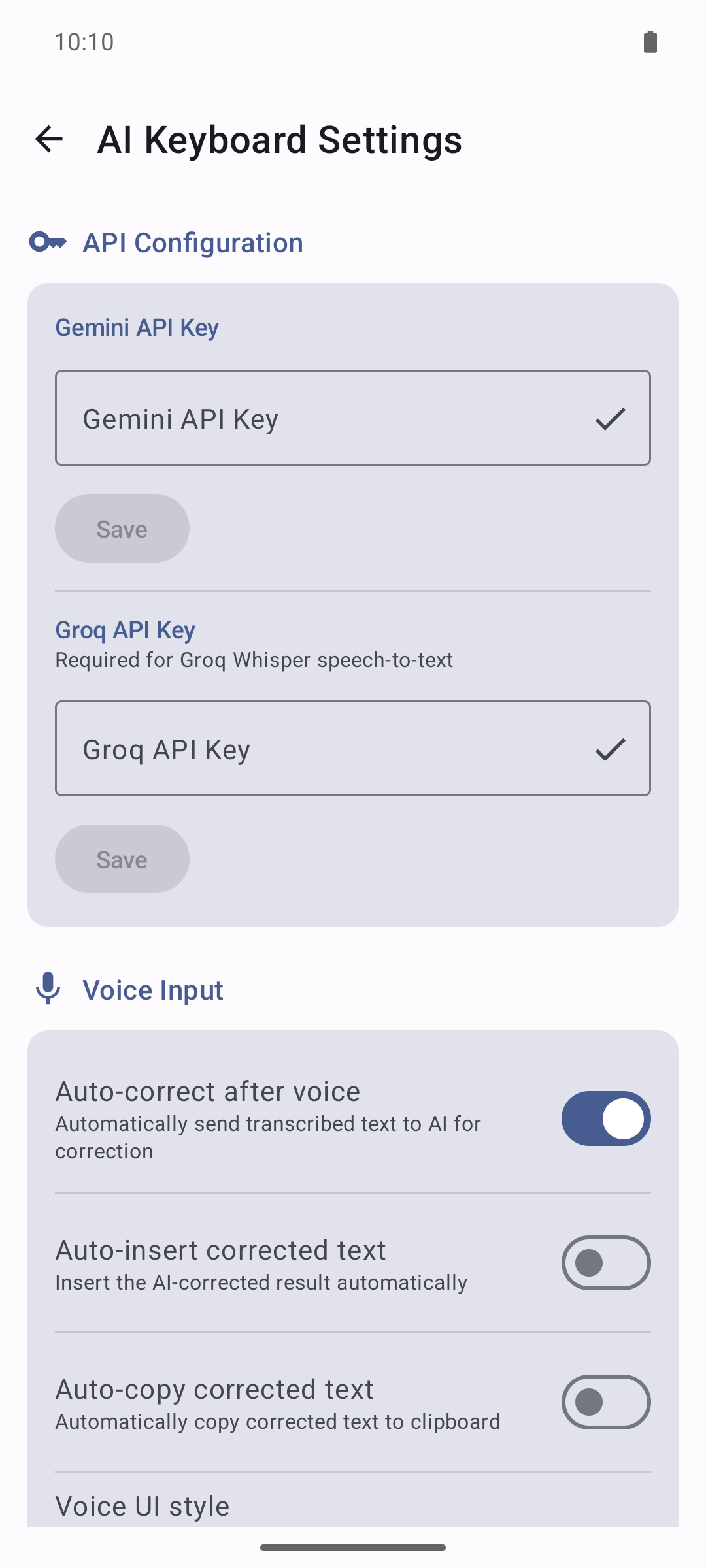
In Settings, you can add/clear your Groq and Gemini API keys, toggle auto-correct after voice, and control whether corrected text is auto-inserted or auto-copied. Need help getting a key? See the Groq guide or the Gemini guide.
Choose your speech provider
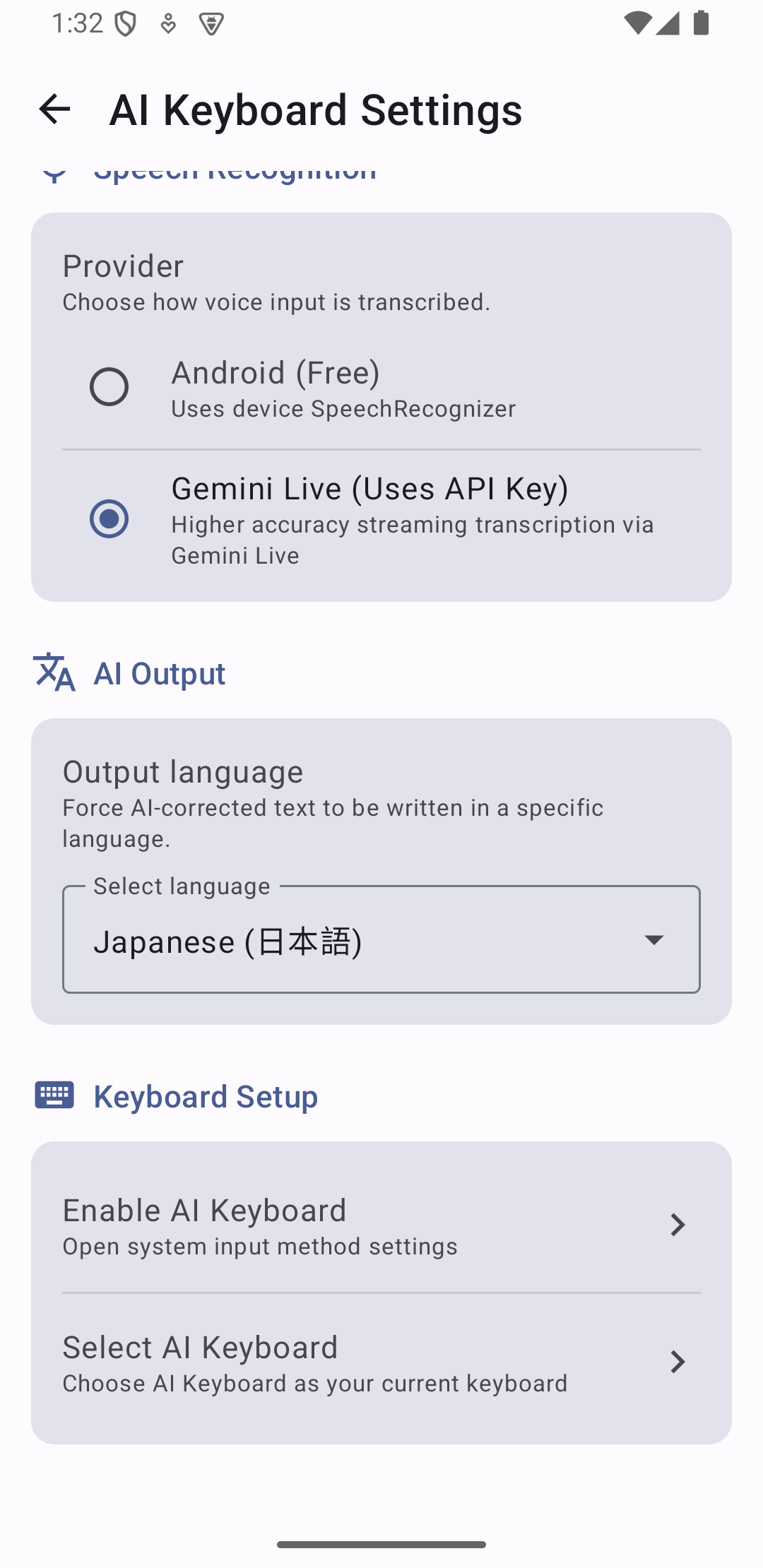
Choose your speech recognition provider: Groq Whisper (recommended) records your full thought first, then transcribes it with complete sentence context — the most accurate option, and Groq’s free tier covers typical daily use. Android (Free) uses the device SpeechRecognizer with no key at all. Gemini Live provides streaming transcription, but on the free tier it may be unstable or quota-limited. Free Gemini keys are still great for output styles (Fix Grammar / Professional / Casual). For native audio pricing details, see Gemini API pricing. For a quick monthly estimate, see Cost estimator.
Advanced Gemini model & model badge
The recommended text model (Gemini 3.5 Flash-Lite) is selected automatically. Power users can opt into a custom Gemini model: tap Fetch available models to load the models your key can actually use, or type an ID by hand. Invalid or retired IDs safely fall back to the recommended default, and the model badge on every result names the model that actually answered.
Field Correction & Typing Assistance
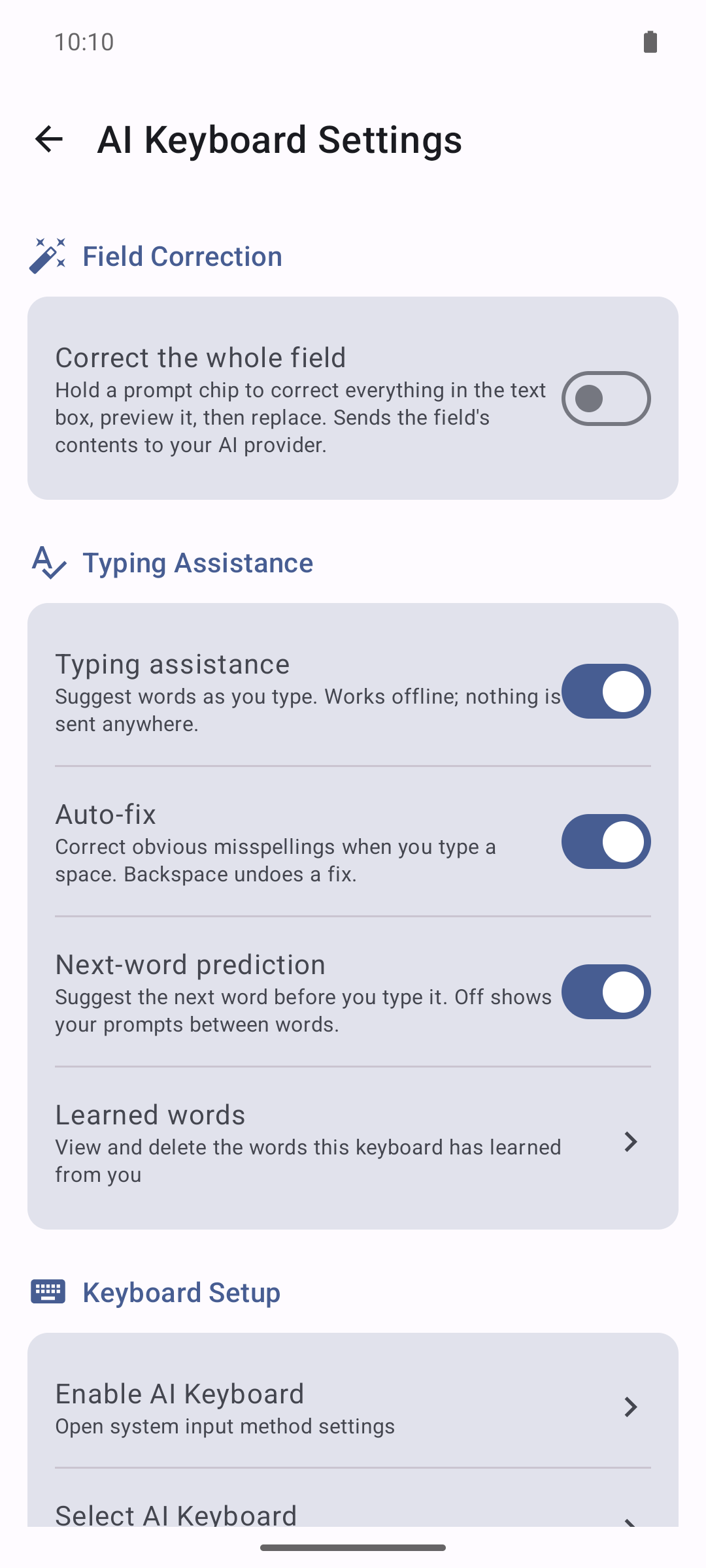
Field Correction (off by default) enables the hold-a-chip gesture that corrects the whole text box — it sends the box’s contents to your AI provider, so it stays off until you turn it on, and is always refused in password, email, phone, number, and date fields. Typing assistance has a master switch with subordinate Auto-fix and Next-word prediction toggles (all on by default), plus a Learned words screen where you can review and delete everything the keyboard has picked up from you.
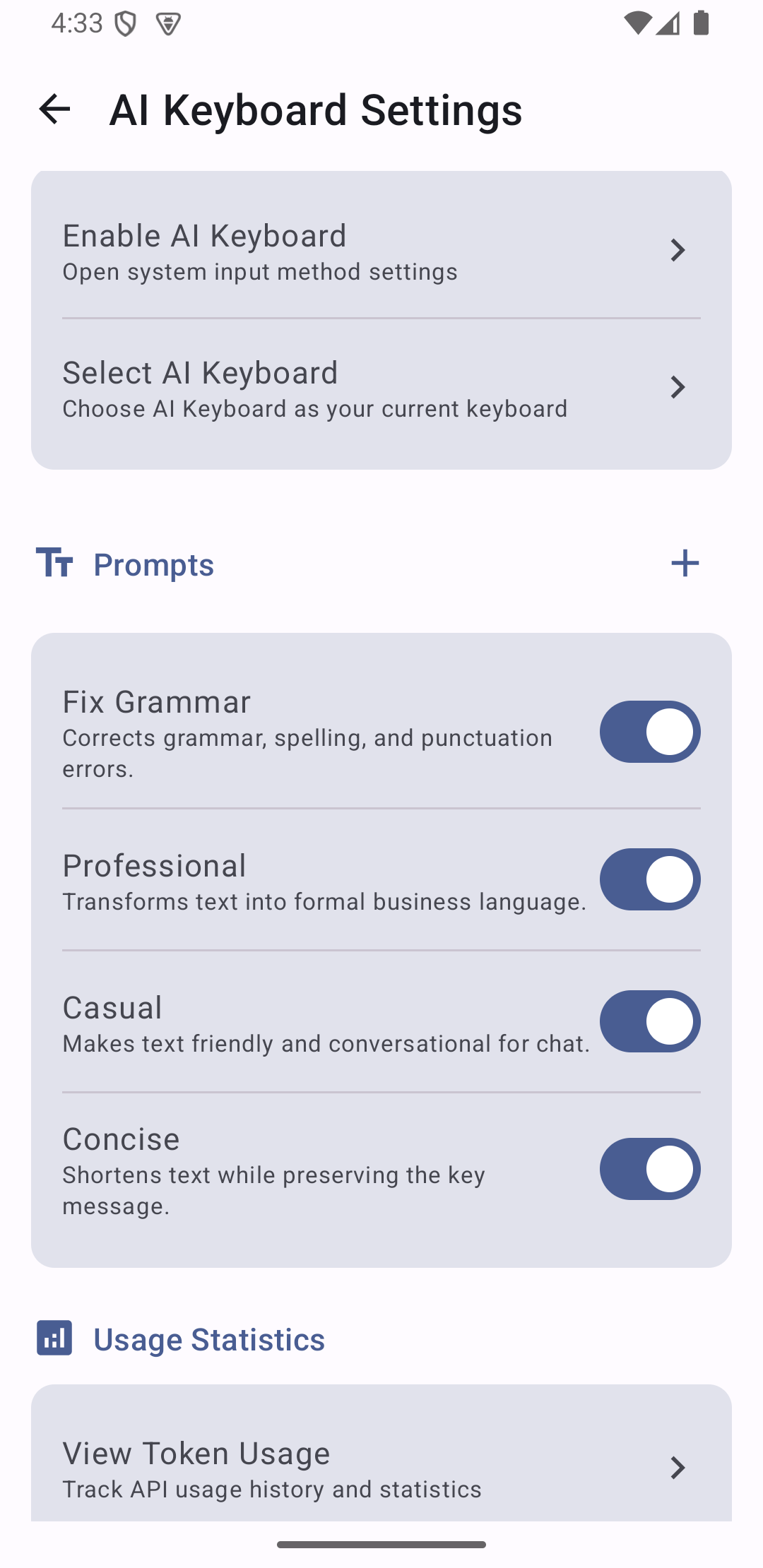
Manage prompts
Enable/disable built-in prompts and keep only the styles you want to see on the keyboard.
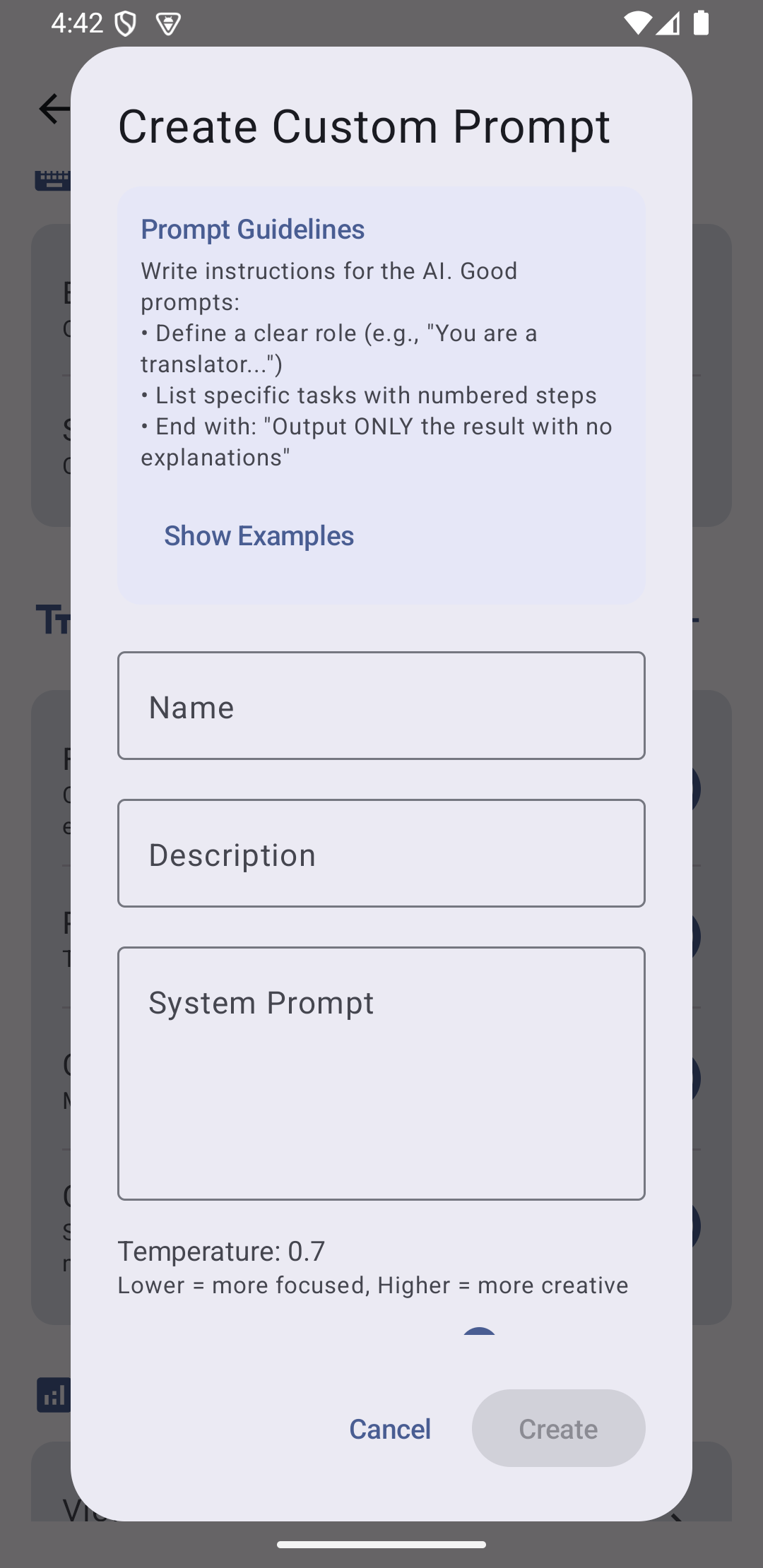
Create your own prompts
Add a custom prompt (e.g., “Make it more polite” or “Summarize”) and tune temperature.
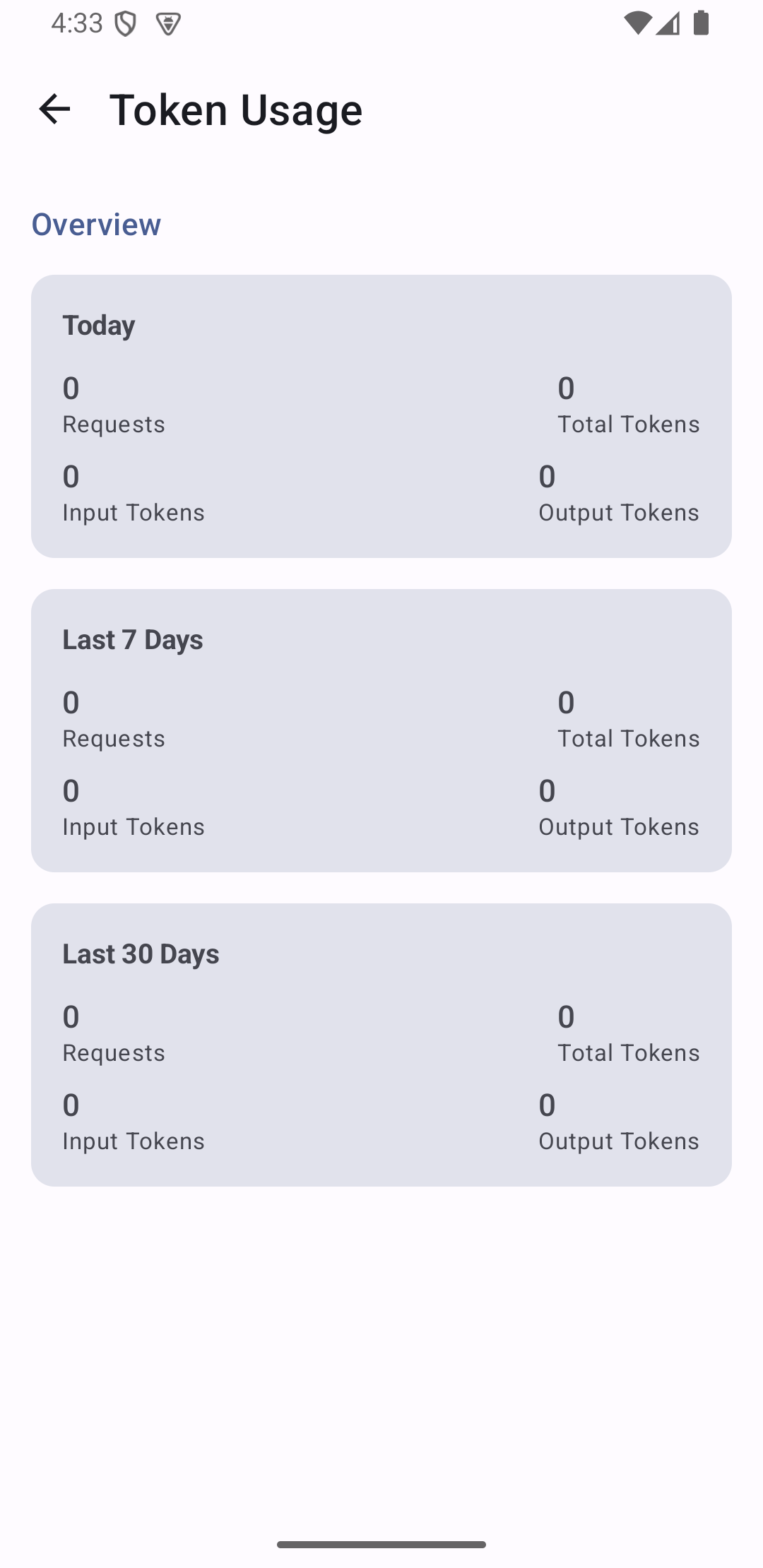
Usage statistics
Track recent AI requests and token usage. This data is stored locally on your device.
Permissions & data (summary)
- Microphone: used for voice dictation when you tap the mic — audio is only recorded then, never in the background.
- Internet: required for AI correction and transcription requests (Groq or Gemini); voice dictation may also use network depending on your device’s speech recognition service.
- API keys: stored encrypted on-device using AndroidX Security.
- Typing assistance: fully offline — suggestions, auto-fix, and predictions never make a network call, and learned words live in a private on-device database you can clear anytime.
- Field Correction: off by default because it sends the text box’s contents to your AI provider; it is refused in password, email, phone, number, and date fields.
- Usage stats: token usage is stored locally on-device.
Troubleshooting
- The keyboard doesn’t appear: go to Setup/Settings → enable AI Keyboard, then select it as the current input method.
- Microphone not working: grant microphone permission and try again.
- AI correction not working: ensure a Gemini API key is configured and you have internet access.
- Gemini Live not working: if you’re on the free tier, Live streaming can be unstable or quota-limited. Try again, confirm your API key and plan/quota, or switch Settings → Speech Recognition → Provider to Android (Free) for transcription and keep using Gemini for output styles. See Gemini API pricing, or use Groq Whisper (recommended) for voice instead.
- Holding a letter no longer types an accent: the accented characters on a e i o u n c were removed in v1.6 — the top row now types digits on hold. If you type accented words regularly, enable a system keyboard alongside and switch with the globe key on the space bar.
- A long hold on backspace deletes whole words: that’s the v1.6 hold-to-delete escalation, and only a held key speeds up — a tap always deletes exactly one character. Deletion also stops at each line break.
Support contact
Developer: YCK
Email:
[email protected]
Google Play:
play.google.com/store/apps/details?id=com.kengblog.aikeyboard
Feedback:
https://forms.gle/EVX64Rimp2fQsJxh8
Closed testing:
How to join & help test